
Accessing Degree Plans
Accessing Your Degree Plan
Learn how to access, update, and use your degree plan to stay on track toward graduation.
What Is a Degree Plan?
A degree plan is a roadmap that helps you understand the courses and requirements needed to complete your academic program. Degree plans help students and advisors work together to plan schedules, track progress, and prepare for graduation.
Degree plans can help you identify completed requirements, courses still needed for your program, recommended sequencing, and important graduation milestones. They are also important for registration planning and may help students avoid taking courses that do not apply to their degree program.
At WNMU, students may review program requirements in the Academic Catalog before receiving an advisor-created degree plan. After meeting with advising, students receive working degree plans through Office 365 and OneDrive so they can review and update them with their advisor over time.
Degree plans are planning tools that may change as students update majors, concentrations, catalog years, transfer credit, or course selections. Always review questions or possible schedule changes with your advisor.
How to Access Your Degree Plan in OneDrive
Follow these steps to find your advisor-created degree plan through Mustang Express and OneDrive. Your degree plan is usually shared as an Excel file and may be updated over time with your advisor. You will only see an advisor-created degree plan in OneDrive if one has already been shared with you. If you do not see a degree plan, contact your academic advisor for help.
Access Your Degree Plan
First, log in to Mustang Express and access the OneDrive account where your advisor-shared degree plan is stored.
Your advisor-created degree plan is usually shared as an Excel file through OneDrive. Follow these steps to access the file and begin reviewing your academic requirements and progress.
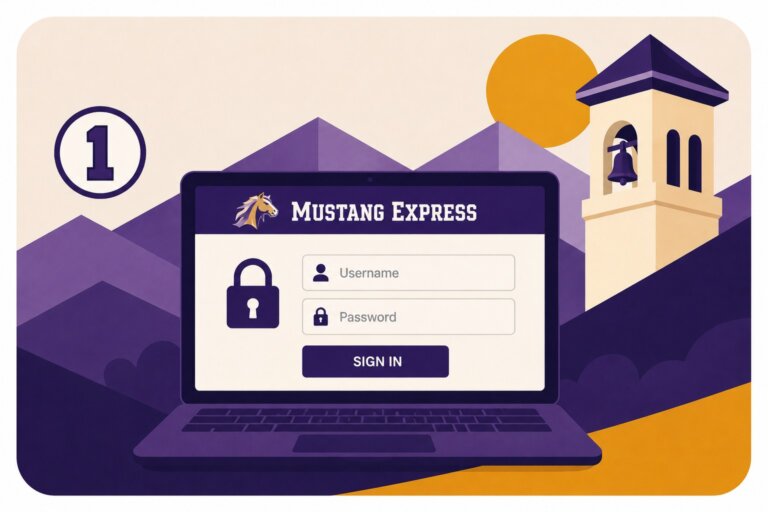
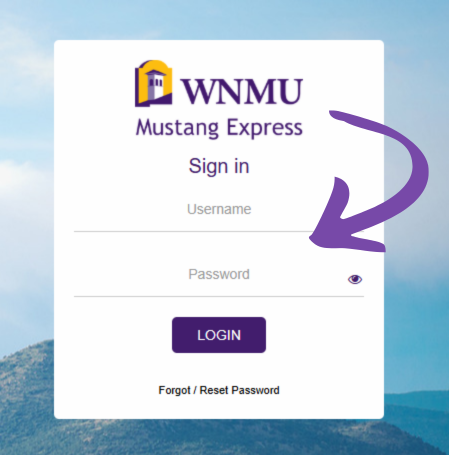
Step 1: Log in to Mustang Express
Start by going to Mustang Express and signing in with your WNMU username and password. This is where you can access the student tools connected to your WNMU account.
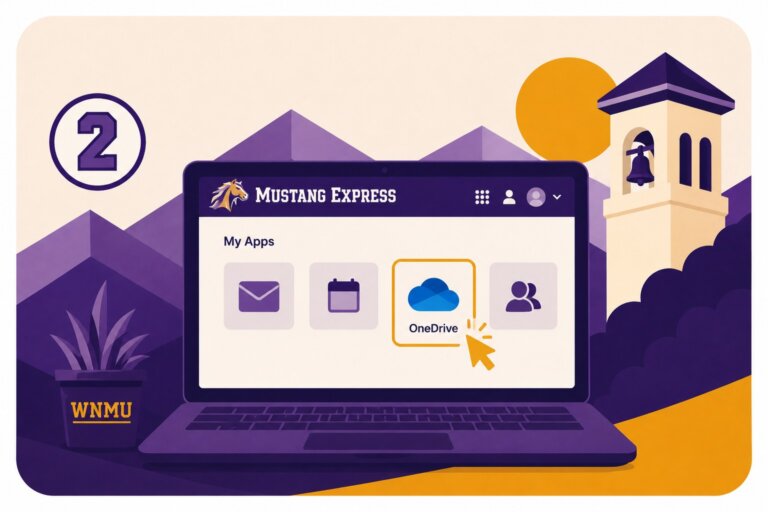
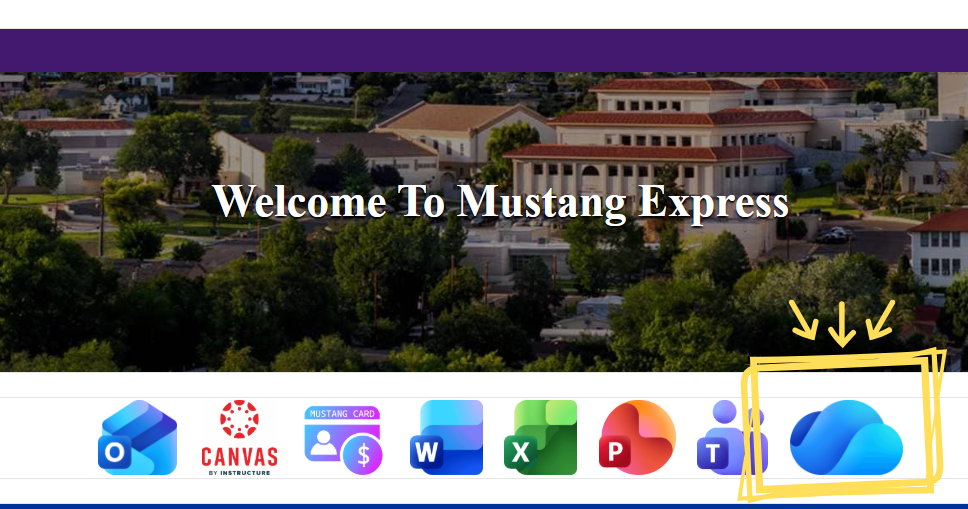
Step 2: Open OneDrive
After signing in to Mustang Express, look for the OneDrive icon on the right-hand side of the screen. Select the icon to open your WNMU OneDrive account.
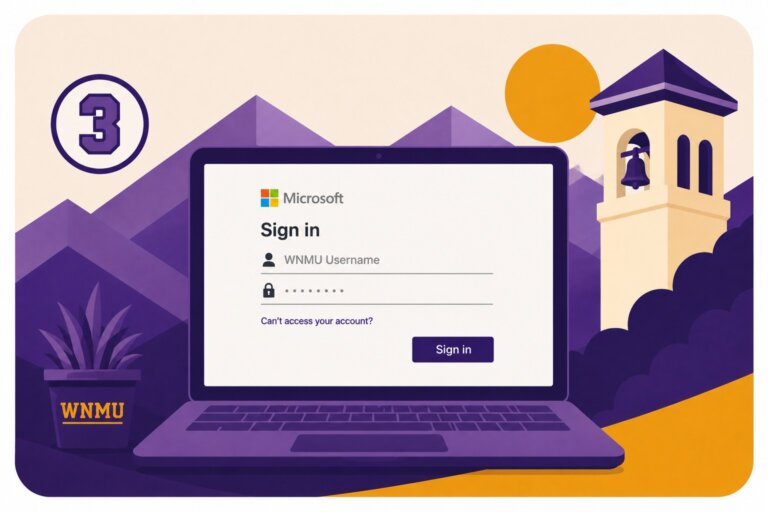
Step 3: Log in Again if Prompted
Some students may be asked to sign in to Microsoft again after opening OneDrive. If prompted, enter your WNMU username and password to continue.
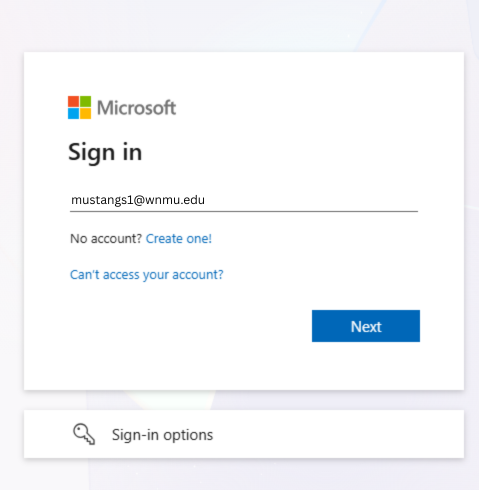
Find and Open Your Degree Plan
Next, locate your advisor-shared degree plan file in OneDrive and open the file menu to begin accessing the spreadsheet.
Your degree plan file is usually named using your last name, first name, and W#. You may need to choose how you want to open the file depending on your device and software.
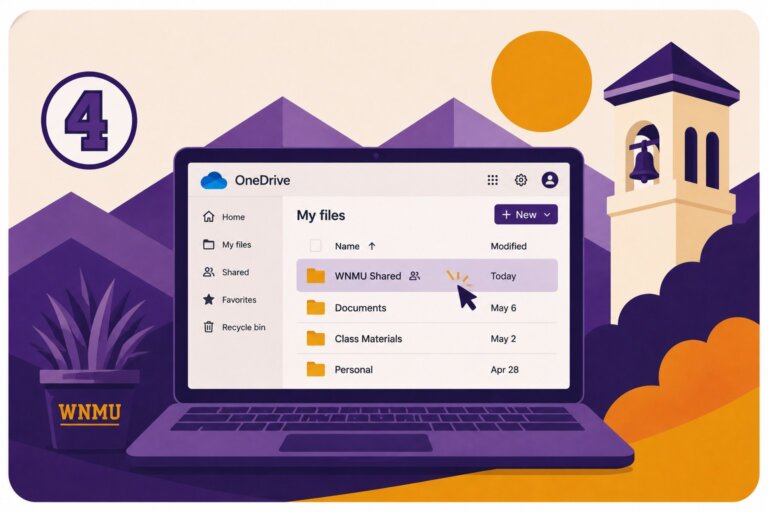
Step 4: Select Shared
Once OneDrive opens, look at the menu on the left-hand side of the screen and select Shared. This is where files shared with you by your advisor will appear.
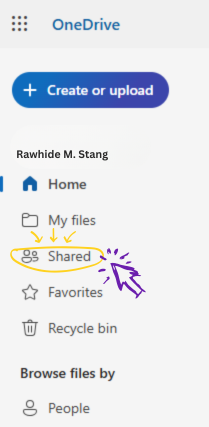
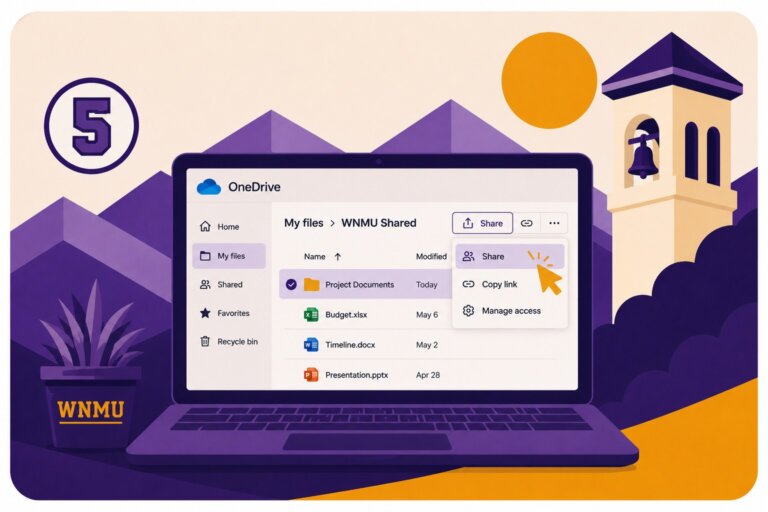
Step 5: Find Your Degree Plan File
Look for an Excel file with a name similar to “Degree Plan – Your Last Name, Your First Name, Your W#.” This is the working degree plan shared with you by your advisor.
If you do not see a degree plan file in your Shared folder, contact your academic advisor for assistance.
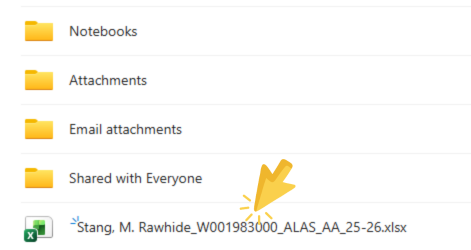
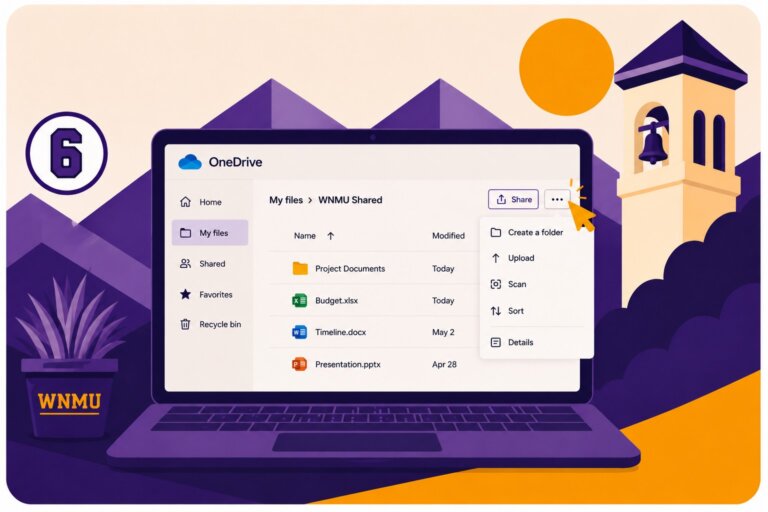
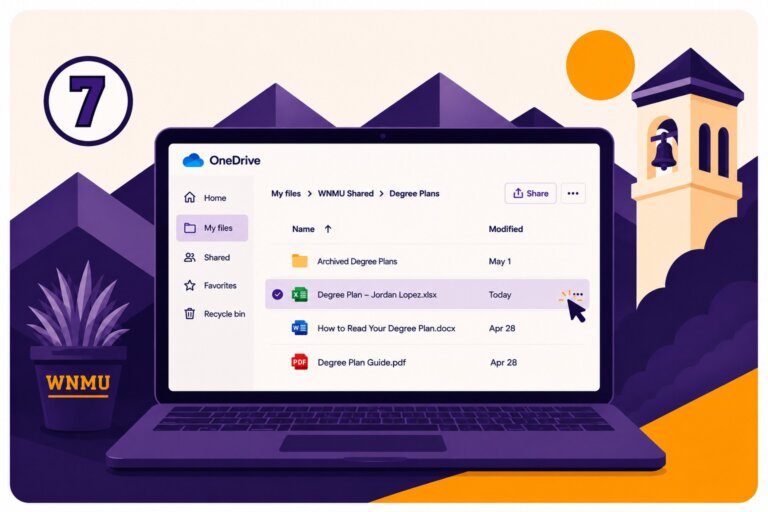
Step 6: Open the File Menu
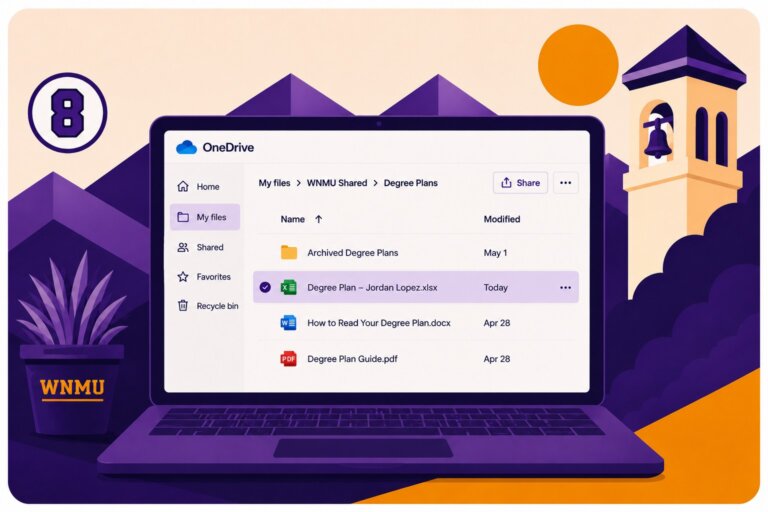
Find your degree plan file in the Shared folder. Move your mouse over the file name and select the three vertical dots to open the file menu.
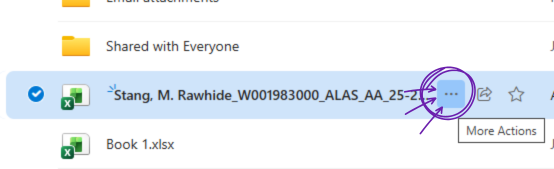
Open Your Degree Plan in Excel
After locating your degree plan file, you can open it in Excel Online or the Excel desktop application to begin reviewing and updating your information.
Depending on your computer or browser settings, you may see different prompts asking how you would like to open the file. Follow the steps below to continue into Excel.
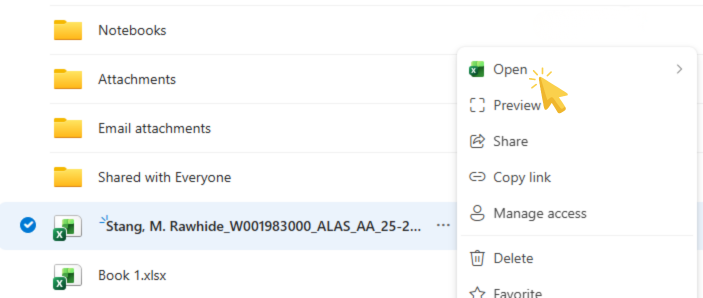
Step 7: Select Open
After opening the file menu, select Open to begin opening your degree plan file.
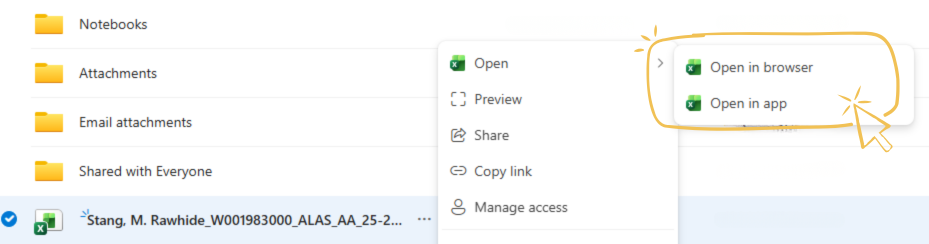
Step 8: Choose How to Open the File
Select either Open in Excel Online or Open in Excel. Some systems may display these options as Open in Browser or Open in App.
Tip: Excel Online opens in your web browser and saves automatically. Open in Excel uses the desktop Excel application installed on your computer.
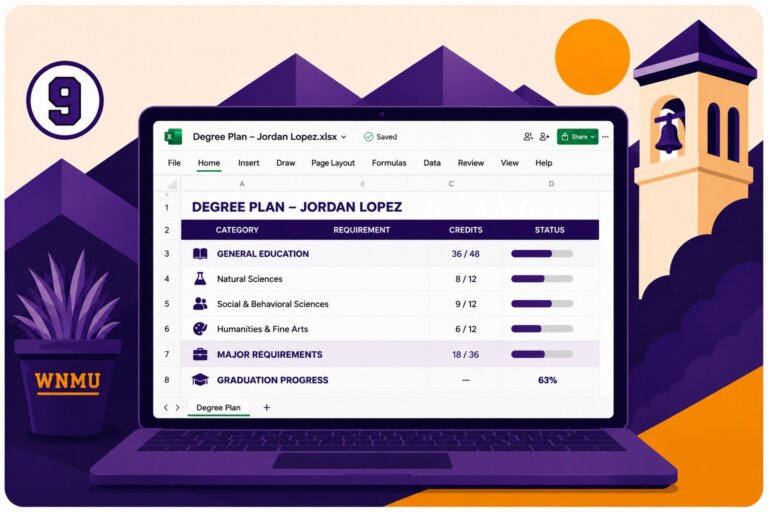
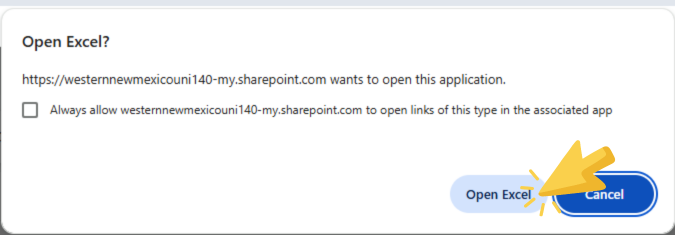
Step 9: Select Open Excel if Prompted
If you choose Open in Excel or Open in App, your browser or computer may display a confirmation window. Select Open Excel to continue opening the file in the Excel desktop application.
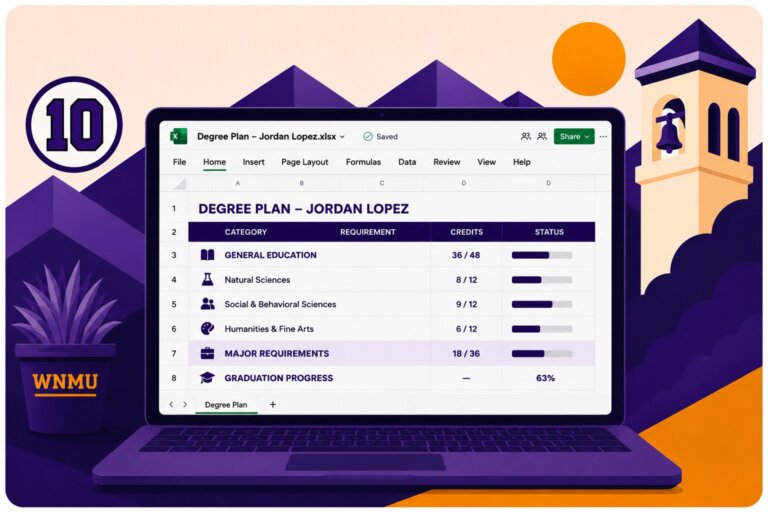
Review, Edit, and Save Your Degree Plan
Once your file opens in Excel, you may need to enable editing before making changes. After editing is enabled, you can review your requirements, update planning notes, and save changes to your OneDrive file.
Remember that your degree plan is a working planning document. Always discuss major schedule changes, transfer credit questions, or graduation concerns with your academic advisor.
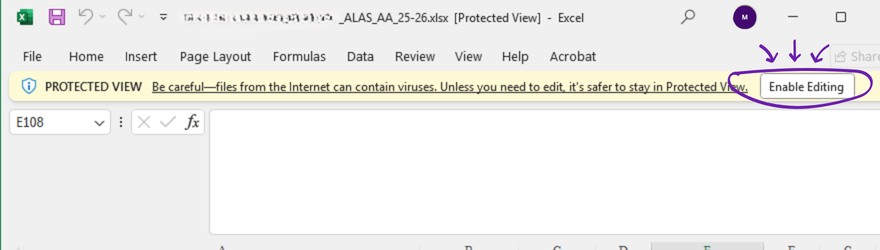
Step 10: Enable Editing
When the file opens in Excel, you may see a yellow notification bar near the top of the screen. Select Enable Editing and then Edit Workbook if prompted.
This allows you to update your degree plan and save changes to your OneDrive file.
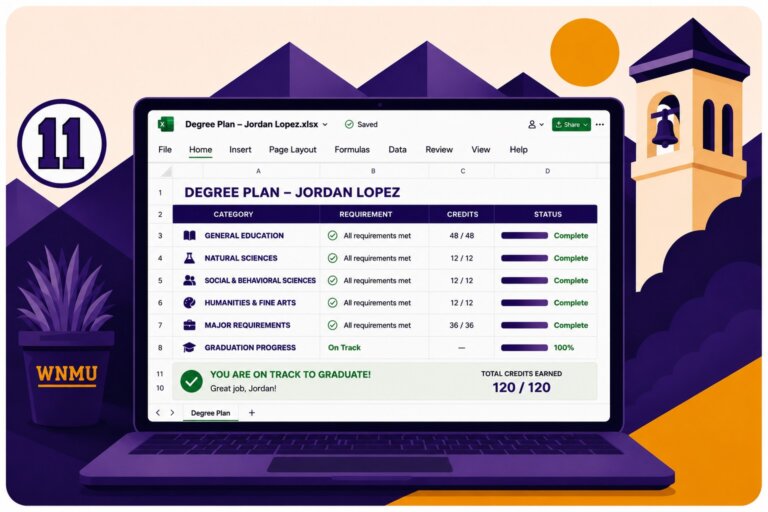
Step 11: Update and Save Your Degree Plan
You can now review, update, or add information to your degree plan spreadsheet. Be sure to save your changes regularly while working in the file.
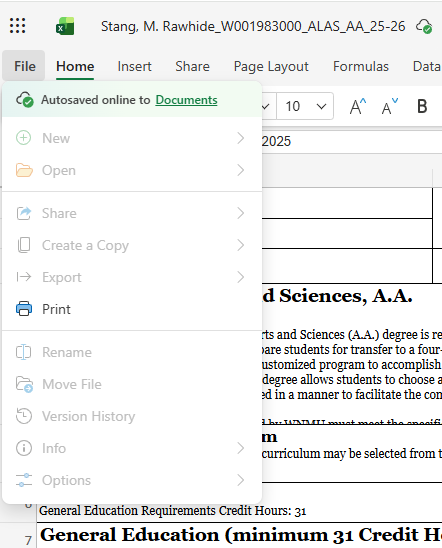
If you are using Excel Online, changes usually save automatically. If you are using the Excel desktop app, select the Save icon in the upper-left corner of the screen to save your updated file to OneDrive.
Tools That Support Your Academic Planning
Degree plans work alongside several other academic planning tools and resources at WNMU. These resources can help you understand program requirements, review academic progress, prepare for registration, and connect with advising support.




If you cannot locate your degree plan or are unsure what you are seeing, an academic advisor can help you access and understand it.
You Don’t Have to Navigate College Alone
While self-service tools can help you complete many academic tasks independently, building a relationship with an academic advisor is one of the best ways to stay informed, supported, and on track toward graduation.
Contact Us
We’re here to support you throughout your WNMU journey. Whether you have a question, need guidance, or are not sure where to start, the Advising Center is ready to help. Reach out and a member of our team will be happy to assist you!